Introduction
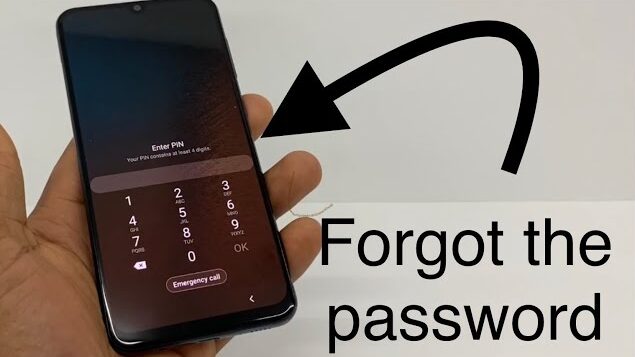
Forgetting your phone’s screen lock can be stressful, especially when important data is inside. Many people face this problem after changing a password or using a new lock type. The good news is that there are safe and official ways to unlock your phone without risking your data or device security.
What Does “Forgot Screen Lock” Mean?
A forgotten screen lock means you can no longer access your phone because you don’t remember the pattern, PIN, or password. This can happen due to:
• Changing the lock and forgetting it
• Not using the phone for a long time
• Letting a child set a new lock
• Software updates resetting security memory
• Using fingerprint or face lock and forgetting the backup PIN
Phone manufacturers design recovery options for this exact situation.
Types of Screen Locks on Mobile Phones
Most smartphones use one of these lock types:
• Pattern lock
• PIN code
• Password
• Fingerprint lock
• Face unlock
Biometric locks still depend on a backup PIN or password, so forgetting that backup causes the problem.
Safe Ways to Unlock Your Phone
Use Google Account (Android Phones)
If you are using an Android phone and it is linked to a Google account:
• Enter the wrong lock several times
• Select “Forgot Pattern” or similar option
• Sign in with your Google account
• Create a new lock
This method works only if the phone is connected to the internet and the account is active.
Use Find My Device (Android)
If you remember your Google account but not the lock:
• Open Google Find My Device on another phone or computer
• Sign in with the same account
• Select your locked phone
• Choose reset option
This removes the lock but may erase local data. Cloud backups can be restored later.
Use iCloud (iPhone)
For iPhone users:
• Open iCloud on another device
• Sign in with your Apple ID
• Choose your iPhone
• Select erase device
• Set it up again
Your Apple ID will be required during setup to prevent misuse.
Use Recovery Mode (Last Option)
If nothing else works:
• Power off the phone
• Press volume and power buttons together
• Enter recovery mode
• Choose factory reset
This removes the lock but also deletes local data.
What You Should NOT Do
Avoid these risky actions:
• Do not use “unlock any phone” apps
• Do not download random APK files
• Do not enter your account in unknown tools
• Do not trust websites promising instant unlock
• Do not try illegal bypass tricks
These methods often lead to malware, data theft, or permanent phone damage.
Data Safety Tips After Unlocking
Once you regain access:
• Set a lock you can remember
• Enable fingerprint or face unlock
• Turn on cloud backup
• Save your recovery email
• Enable two-step verification
This prevents the same problem in the future.
Pros and Cons of Unlock Methods
| Pros | Cons |
|---|---|
| Official and legal | Some methods erase data |
| No malware risk | Requires account access |
| Works on most phones | Needs internet |
| Protects privacy | May take time |
Who Should Use These Methods?
These methods are for:
• Owners of the phone
• People who forgot their own password
• Parents unlocking a child’s phone
• Users with proof of ownership
They are not meant for unlocking stolen or чуж phones.
Is It Safe to Unlock Your Phone This Way?
Yes, these methods are safe because they use built-in security systems. They do not break encryption and do not bypass protection illegally. They verify ownership through your Google or Apple account.
Common Mistakes to Avoid
• Trying too many wrong patterns
• Downloading fake unlock apps
• Resetting without backup
• Forgetting account details
• Using unofficial websites
Final Thoughts
Forgetting your phone’s screen lock is frustrating, but it does not mean your phone is lost forever. Both Android and iPhone provide official ways to recover access. Always use safe methods, avoid shortcuts that promise “unlock any phone,” and protect your data with proper backups.