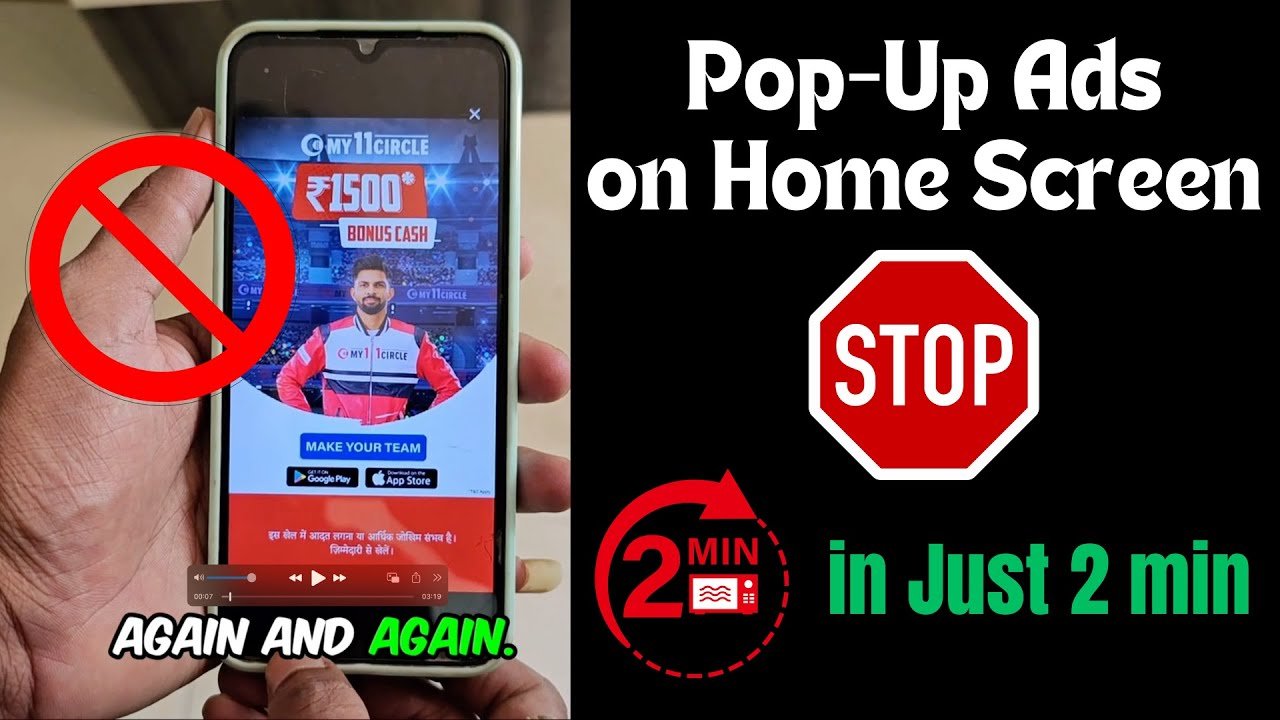
Pop-up ads can quickly turn a smooth phone experience into a frustrating one. Whether they appear while browsing, using apps, or even on your home screen, these intrusive notifications waste time and sometimes pose security risks. The good news is that in 2026, Android devices offer better built-in tools to fight them effectively.
This guide walks you through simple, safe methods to detect where these ads are coming from and block them for good. You do not need advanced technical skills—just follow the steps carefully.
What Are Pop-Up Ads on Your Phone?
Pop-up ads are small windows or overlays that suddenly appear on your screen, often promoting products, services, or sometimes leading to suspicious sites. On Android phones, they commonly show up in web browsers, but they can also originate from apps, notifications, or even system-level issues.
Unlike regular banner ads, pop-ups can block your view, redirect you to other pages, or ask for permissions that lead to more unwanted content. They often rely on aggressive advertising networks or poorly designed apps that abuse notification or overlay permissions.
Understanding the source helps you address the root cause instead of just treating the symptoms.
Common Causes of Pop-Up Ads in 2026
Several factors contribute to pop-up ads on modern Android phones:
-
Browser Settings: Websites using aggressive scripts for pop-ups and redirects.
-
App Permissions: Apps with “Display over other apps” permission that show overlays.
-
Notifications: Sites or apps sending push notifications disguised as ads.
-
Adware or Suspicious Apps: Free apps that include hidden ad libraries.
-
Outdated Software: Older browser or system versions with known vulnerabilities.
Identifying the cause makes blocking them much easier.
How to Detect Pop-Up Ads on Your Phone
Before blocking, figure out the source:
-
Note When They Appear: Do they show only in the browser, specific apps, or randomly? Browser pop-ups usually happen during web surfing.
-
Check Recent Apps: When a pop-up appears, swipe up from the bottom (or use the recent apps button) to see which app is active.
-
Review Installed Apps: Go to Settings > Apps and look for unfamiliar or recently installed apps, especially free games or utilities.
-
Safe Mode Test: Restart your phone in Safe Mode (press and hold the power button, then long-press “Power off” and select Safe Mode). If pop-ups stop, a third-party app is likely responsible.
-
Notification History: Check Settings > Notifications to see which apps or sites send frequent alerts.
This detective work usually reveals the culprit quickly.
Step-by-Step Guide to Block Pop-Up Ads in Chrome (Most Common Browser)
Google Chrome is the default browser on most Android phones. Here is how to strengthen its protections:
-
Open the Chrome app.
-
Tap the three dots in the top right corner and select Settings.
-
Scroll down and tap Site settings.
-
Tap Pop-ups and redirects and ensure it is set to Blocked.
-
Go back and tap Ads (or Intrusive ads) and block that as well.
-
Return to Site settings and check Notifications. Set it to ask before allowing or block suspicious sites.
These settings stop most website-based pop-ups effectively.
Block Pop-Ups in Other Browsers and Samsung Internet
If you use Samsung Internet or another browser:
-
Samsung Internet: Open the app > Menu (three lines) > Settings > Privacy dashboard > Turn on Block pop-ups. Also explore the Ad blockers section.
-
Firefox or Edge: Similar paths exist under Settings > Privacy & Security > Block pop-ups.
Switching to a privacy-focused browser can provide extra protection if Chrome feels limited.
Manage App Permissions to Stop Overlay Ads
Many pop-ups come from apps that draw over other screens:
-
Go to Settings > Apps > Special app access (or search for “Display over other apps”).
-
Review the list and disable permission for any unknown or unnecessary apps.
-
For notifications: Go to Settings > Notifications > App notifications and turn off alerts from suspicious sources.
Regularly review these permissions to maintain control.
Use Private DNS for System-Wide Ad Reduction
A smart network-level trick available in 2026:
-
Go to Settings > Network & internet > Private DNS.
-
Select Private DNS provider hostname.
-
Enter a reliable option like
dns.adguard.comorsecurity.cloudflare-dns.com. -
Save the changes.
This blocks many ad domains at the DNS level without installing extra software. It works across apps and browsers.
Remove Suspicious Apps and Adware
If pop-ups persist:
-
Go to Settings > Apps.
-
Sort by recently installed or used.
-
Uninstall any apps you do not recognize or no longer need.
-
Use built-in Google Play Protect: Open Play Store > Profile > Play Protect > Scan.
Keeping your app list clean is one of the most effective long-term solutions.
Additional Tips and Best Practices
-
Keep Everything Updated: Regular system, browser, and app updates patch security issues that adware exploits.
-
Clear Browser Cache: In Chrome Settings > Privacy and security > Clear browsing data. Choose Cached images and files.
-
Limit Site Permissions: Only allow notifications from trusted websites.
-
Use Google’s Safety Check: In Chrome Settings, run the Safety check tool regularly.
-
Be Careful with Free Apps: Read reviews and permissions before installing.
-
Restart Regularly: A simple reboot can clear temporary overlay issues.
Combine these habits for the best results.
Advantages and Limitations of These Methods
Advantages:
-
Free and built-in—no extra cost.
-
Improves phone speed and battery life.
-
Enhances privacy and security.
-
Easy to apply for most users.
Limitations:
-
Some aggressive ad networks may still slip through occasionally.
-
System-wide blocking without third-party tools has limits.
-
Results vary slightly by phone brand (Samsung, Xiaomi, Google Pixel, etc.).
For most people, these steps reduce pop-ups by 80-90% or more.
Common Mistakes to Avoid
-
Ignoring app permissions and letting everything run in the background.
-
Clicking on pop-ups or “Allow” buttons out of curiosity.
-
Installing apps from unknown sources.
-
Forgetting to update your phone and browser.
-
Using too many “optimization” or cleaner apps that sometimes cause more problems.
Avoiding these keeps your device cleaner.
Frequently Asked Questions
Why do I keep getting pop-up ads even after blocking them?
Persistent ads often come from apps with overlay permissions or notifications. Check those settings and remove suspicious apps.
Can I completely eliminate all ads on Android?
You can reduce them significantly using the methods above. For stricter control, reputable privacy tools from official sources help, but built-in options work well for everyday use.
Is it safe to use Private DNS services?
Yes, services like AdGuard DNS or Cloudflare are widely trusted and focus on privacy and security.
Do these steps work on Samsung, Xiaomi, or Pixel phones?
Yes, with minor variations in menu names. The core principles remain the same.
Will blocking pop-ups affect legitimate websites?
Rarely. You can allow specific trusted sites if needed through browser exceptions.
What should I do if pop-ups appear outside the browser?
This usually indicates an app issue. Use Safe Mode to identify and uninstall the problematic app.
Conclusion
Dealing with pop-up ads does not have to be a constant battle. By adjusting browser settings, managing permissions, using Private DNS, and keeping your phone clean, you can enjoy a much smoother experience in 2026. Start with the Chrome tweaks and app review—these deliver the fastest improvements.